
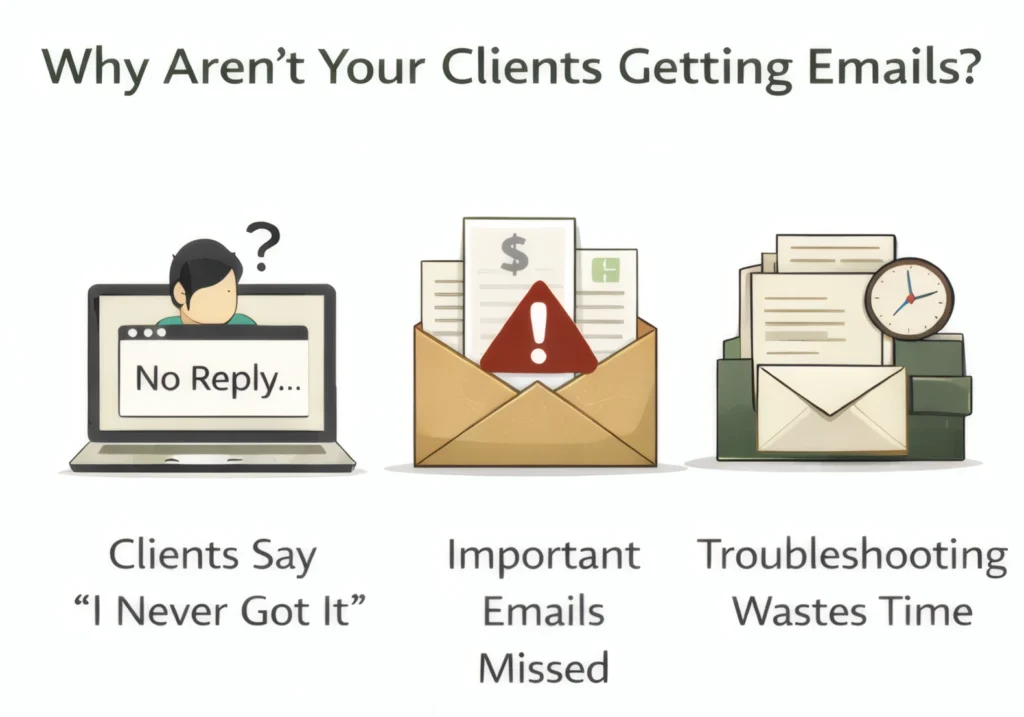
If clients say they didn’t get your email, or are calling you because they didn’t receive your business emails and your emails are showing up in spam, you likely have email deliverability issues.
Invoices, proposals, and follow-ups often go missing because inbox providers don’t fully trust the domain they’re coming from. When that happens, emails quietly land in spam or never show up at all, and you end up wasting time troubleshooting email instead of doing actual work.
The good news is it’s usually a small setup issue that can be fixed once and forgotten. This guide shows what to check and how to get it handled without getting technical.
This guide shows what to check and how to get it handled, in plain english.
What Email Deliverability Actually Means
Email deliverability is simply the likelihood that your emails:
- Reach the recipient’s inbox
- Are trusted by inbox providers
- Are not flagged as spam or silently dropped
Inbox providers like Gmail, Outlook, and Yahoo make these decisions based on trust. They want to know:
- Who you are
- Whether you’re allowed to send from your domain
- Whether your emails behave consistently and responsibly
That trust is established through a combination of setup and behaviour.
Here are seven steps to fix your email deliverability:
Step 1: Stop Sending From Generic Email Addresses
Addresses like:
These are more likely to be flagged by spam filters because they’re commonly abused.
What works better
- Use named or role-based inboxes:
- Or add some personality
This is a small change, but makes a real impact on trust.
Step 2: Make Sure Your Domain Is Properly Set Up for Email
When you send an email, inbox providers check your domain’s DNS records to verify that the message is legitimate.
For most people, DNS records are set with their domain registrar – the service you pay an annual fee to renew your .com / .ca domain. Here are registrars we recommend:
- Porkbun
- Namecheap
- Grape.ca (for Canadian dot ca domains, formerly 10dollar.ca)
- Cloudflare (also can be setup as DNS provider with any registrar)
- We don’t recommend GoDaddy or Hostgator for their shady practices and price gouging
If you previously used Google Domains, those have been moved to Squarespace domains.
You do not need to change registrars to fix deliverability. You just need the correct records in place.
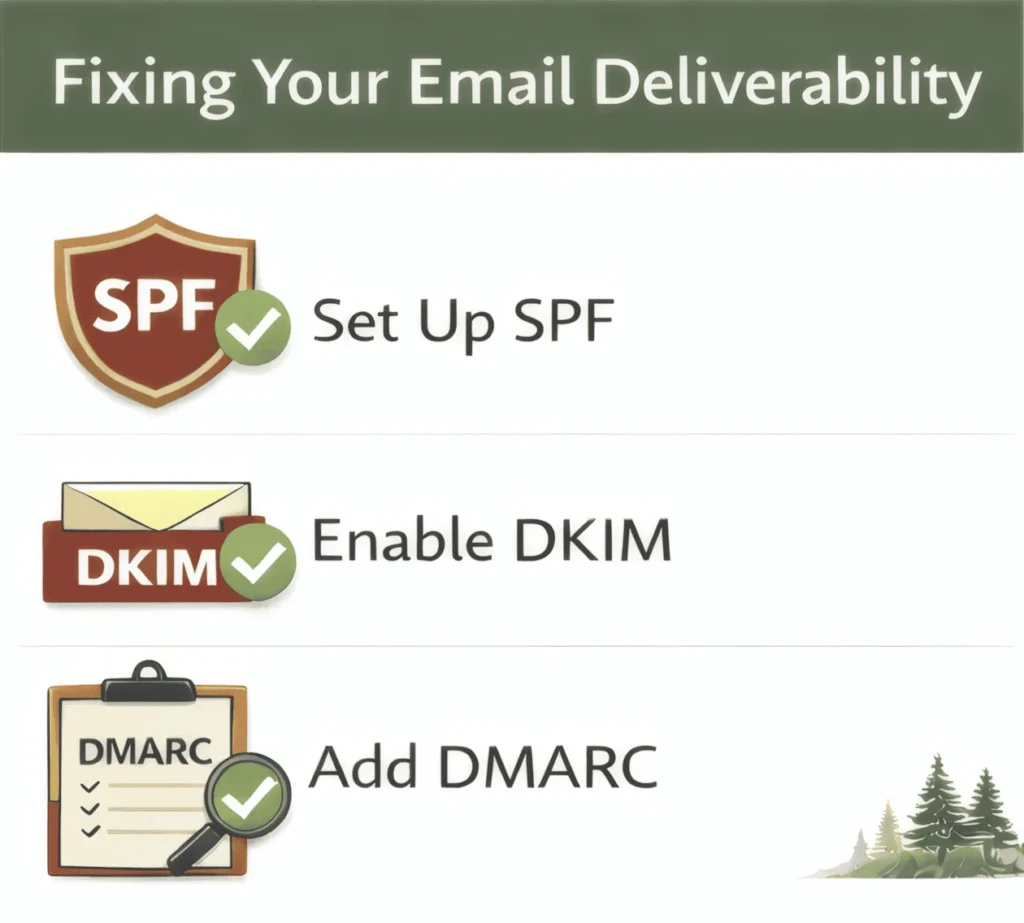
Step 3: Set Up SPF (Who Is Allowed to Send Email)
SPF tells inbox providers which services are allowed to send email on behalf of your domain.
This usually includes:
- Your main email provider
- Invoicing or accounting software
- CRMs or booking systems
- Newsletter or marketing tools
If SPF is missing or incorrect, emails are more likely to land in spam or disappear entirely.
Each email provider has different settings.
This is an example of a SPF record to add to your DNS if you’re using Google Workspace for emails:

Note: you can only have ONE SPF record. If you use another service for marketing emails, i.e. MailerLite, Beehiiv or Mailchimp, you’ll need to add another domain to the include: parameter. Google provides some examples here.
Free tools to check SPF
Step 4: Set Up DKIM (Proving the Email Is Authentic)
DKIM adds a cryptographic signature to your emails that proves:
- The email really came from your domain
- The message wasn’t altered after it was sent
DKIM is one of the highest-impact factors for deliverability.
If DKIM is broken or missing:
- Emails may arrive inconsistently
- Deliverability often degrades over time
Setting up DKIM is slightly more complicated. It also involves adding a TXT record to your DNS, but you need to login to your Google Admin Console to generate a value to copy:
- Google Admin Console → Apps → Google Workspace → Gmail
- Authenticate email (DKIM)
- Select your domain → Generate new record (often 2048-bit)
- Copy the two fields Google gives you:
- DNS Host name (example: google._domainkey)
- TXT record value (starts with v=DKIM1; k=rsa; p=…)

Full DKIM instructions Google’s KB.
Free DKIM checkers
- https://mxtoolbox.com/dkim.aspx
- https://www.mail-tester.com
Step 5: Add DMARC (The Rules and Reporting Layer)
DMARC ties SPF and DKIM together and tells inbox providers:
- What to do if something fails
- Whether to allow, quarantine, or reject suspicious emails
- Where to send reports about problems
Even a basic DMARC setup is better than none. It’s also a TXT record, and looks like this:

See Google’s KB article on setting up DMARC.
Free DMARC checks
Step 6: Check All Tools That Send Email for You
A very common mistake is fixing your main inbox but forgetting other tools that send email using your domain:
- Accounting or invoicing software
- Booking systems
- CRM follow-ups
- Website forms
If some emails arrive and others don’t, this is often why.
Step 7: If Your Company or Domain Is New, Warm Up Your Email
If your domain or inbox is relatively new, sending a lot of email right away can hurt deliverability.
Inbox providers expect gradual, human-like behavior.
Basic warm-up principles
- Start with low volume
- Send real one-to-one emails
- Get replies
- Avoid sudden spikes or bulk sends early on
This usually takes a few weeks and pays off long term.
Why This Matters More Now in 2026
February 2024 changes (Google and Yahoo)
Starting in February 2024, Google and Yahoo introduced stricter requirements for email senders. Proper authentication is no longer optional for reliable delivery.
Even small businesses are affected, especially for:
- Invoices
- Client communication
- Automated system emails
Microsoft’s direction (2025)
Microsoft (Outlook / Office 365) has signaled similar enforcement moving into 2025. Weak or incomplete setups that “mostly worked” before are becoming less reliable over time.
Platform-specific References (Optional)
Here are links to email deliverability documentation on common platforms:
- Wix email deliverability overview
https://support.wix.com/en/article/increasing-your-mail-deliverability - Google Workspace / Gmail
https://dmarcly.com/blog/spf-dkim-dmarc-set-up-guide-for-g-suite-gmail-for-business - Microsoft Outlook / Office 365
https://dmarcly.com/blog/how-to-set-up-dmarc-dkim-and-spf-in-office-365-o365-the-complete-implementation-guide
Quick Checklist You Can Hand to Your Tech
- Use named or role-based inboxes
- Confirm SPF exists and includes all sending tools
- Confirm DKIM is enabled and passing
- Add a DMARC policy
- Verify all email-sending tools are covered
- Test deliverability after changes
- Warm up new domains or inboxes
One Optional Next Step: BIMI
Once everything above is stable, some businesses choose to add BIMI, which then shows your logo to appear in Gmail inboxes. Don’t you trust emails more when you see their photo next to their email in your inbox?
This does not improve deliverability, but it can improve recognition and trust.
Final Thoughts
Email deliverability problems tend to linger because they feel vague or those with the keys are inexperienced in the technical aspects – I get it, changing DNS settings can be scary as it can lead to downtime. In reality, email problems are usually the result of a few missing or misconfigured pieces.
Often inexperienced and non-technical web designers, web “developers” (I use this term loosely to cover those creating websites in builders like Wix, Squarespace and WordPress) miss these steps, which can result in lost emails, customer confusion, and wasted time and lost revenue. If you want a second set of eyes on your setup, contact us with the domains you want checked, and we’ll have our developer take a quick look.