ClickFix malware had turned a client’s WordPress ecommerce site into a trap for its own customers.
Visitors were seeing a fake verification screen that tried to convince them to run malicious commands on their computers. For the site administrator, everything could look normal.
This was mission critical. The business depended on the website for sales, and customers needed to be able to shop safely.
We had to go deep on this one. The cleanup guides we found in search covered parts of the problem, but none was comprehensive enough for the infection in front of us. Removing the plugin behind the fake CAPTCHA was only the start.
We used GPT extensively throughout the investigation, alongside direct inspection of the site and our own tests to check what was happening and whether each cleanup step had worked. That process took us from hidden XDav plugins to NoChain files and database entries that also needed removing.
Here’s how we worked through it.
What is ClickFix malware?
ClickFix tricks people into running a malicious command on their own computer. A common version starts with a fake “Verify you are human” screen that imitates a CAPTCHA or Cloudflare security check.
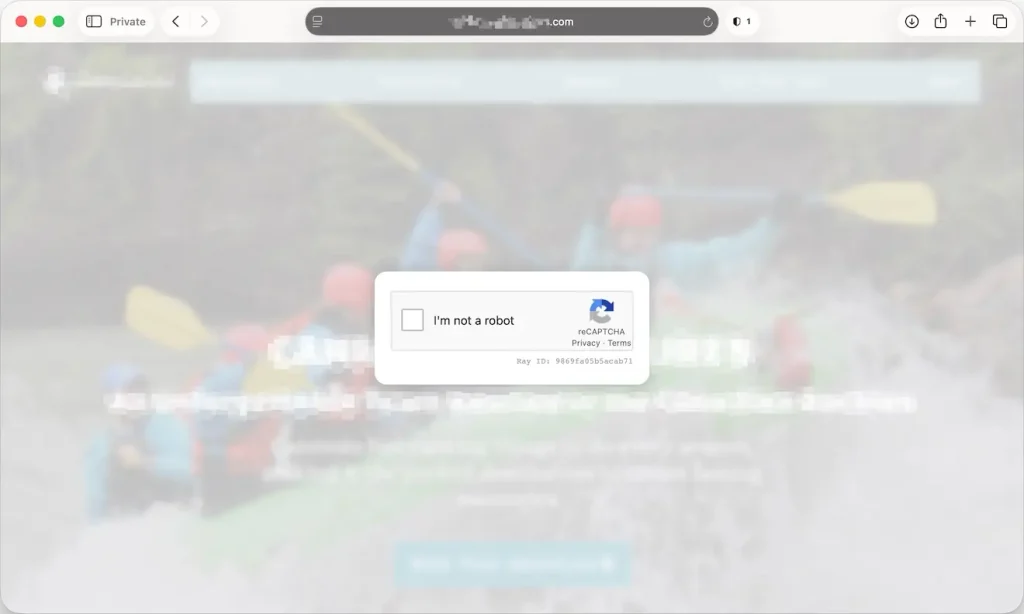
The visitor is then told to open a tool such as Windows Run or Terminal, paste a command, and press Enter. It looks like another verification step. In reality, that command can download malware.
Microsoft has documented ClickFix attacks delivered through compromised websites, including sites potentially compromised through WordPress vulnerabilities. The fake verification screen borrows the appearance of a familiar security tool to make the instructions seem trustworthy.
A legitimate CAPTCHA should never ask you to run commands on your computer.
How we investigated and removed the WordPress infection
1. Confirming what visitors were seeing
The fake verification screen asked visitors to open Terminal, paste a command, and press Enter. This wasn’t a broken CAPTCHA.
Logged-out visitors could see the malicious prompt while an administrator could browse normally. We needed to investigate the public-facing experience, rather than rely on what we saw while logged into WordPress.
2. Tracing the injection to XDav TrackerD
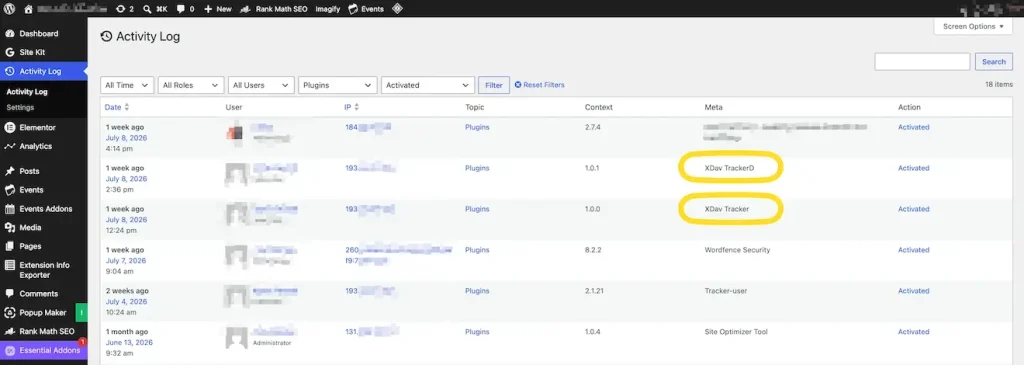
We found XDav Tracker and XDav Tracker, two suspicious looking plugins.
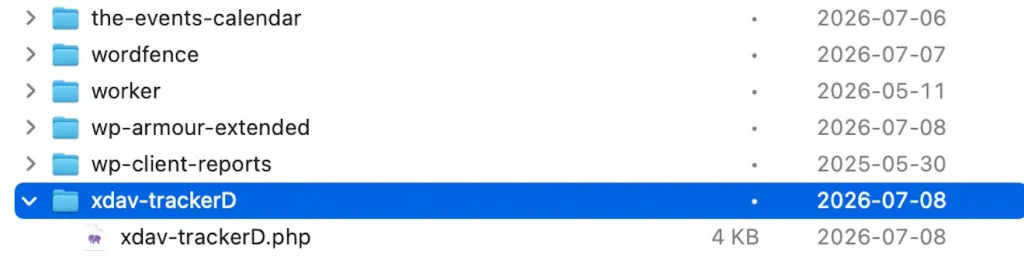
Using SSH to inspect the files directly on the server, we traced the injected JavaScript to:/wp-content/plugins/xdav-trackerD/xdav-trackerD.php
The code was obfuscated, using several layers to disguise the JavaScript before executing it. The plugin also concealed its own listing from the WordPress Plugins screen.
We researched further and found that had been installed maliciously. Since an activity log was installed (something we recommend for all WordPress sites), we were able to see when these malicious plugins were installed:
We removed the xdav-trackerD directory, then checked the website again. The fake CAPTCHA disappeared, the injected JavaScript was gone, and the associated malicious external request stopped loading.
That confirmed the source of the visible attack. We kept looking.
3. Finding the NoChain components
The investigation also uncovered NoChain-related files outside the regular plugins folder:
/wp-content/mu-plugins/nc-dropin.php/wp-content/mu-plugins/nochain.php/nochain-sw.js
This was a separate part of the cleanup. Removing XDav TrackerD had stopped the popup in our checks, but it hadn’t removed these files.
The first two were in WordPress’s MU-plugins directory. MU-plugins, or “must-use plugins,” load automatically and don’t have the same deactivate controls as ordinary plugins. Malicious code there needs to be checked directly.
We also found a separate folder named worker during the investigation. Its name alone didn’t establish its purpose.
The root-level nochain-sw.js file was another important finding. Netskope researchers have documented a ClickFix campaign using that filename for a malicious browser service worker. A service worker can intercept requests for a website; in the campaign they analysed, it could inject malicious content and remain registered in the browser after server-side cleanup.
That research helps explain why service workers deserve attention during a ClickFix investigation. It doesn’t establish that our sample had every capability described in that campaign, or that the separate worker folder performed the same function.
We removed the NoChain-related PHP files and the root-level JavaScript file as part of the cleanup.
4. Cleaning the NoChain entries from the database
The investigation extended to the WordPress database, where we found two NoChain-related settings in wp_options:
nochain_admin_ipsnochain_plant
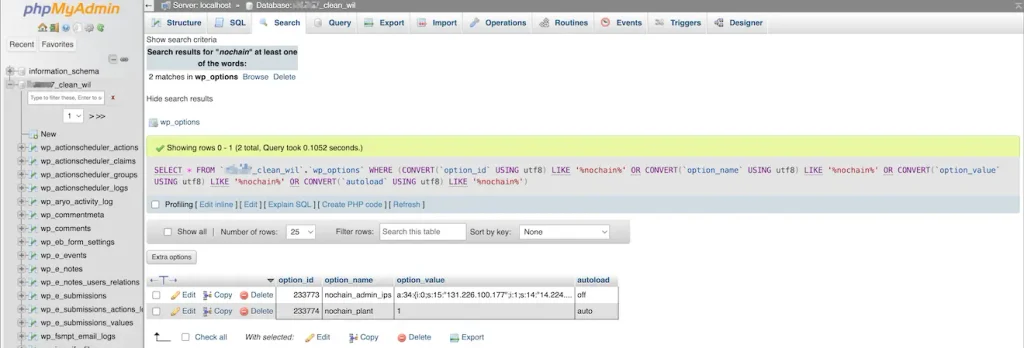
We deleted both entries using phpMyAdmin. Note: directly editing the database is not recommended for non-technical folks!
The database search also returned NoChain references in Wordfence tables. Those were historical file and scan records, so we left them untouched.
That distinction matters. A search result containing a malware filename isn’t necessarily active malware. Deleting every matching row would have removed security records without addressing another infection.
5. Clearing caches and checking the result
After removing the malicious files and database entries, we cleared the relevant caches and checked the website’s output and external requests again. Those checks returned to normal.
The process went beyond making the popup disappear: trace the visible injection, remove its source, investigate the remaining NoChain components, clean the related database settings, and verify what the website was serving afterwards.
These filenames describe this particular case. Another infected WordPress website may use different names, so a search for xdav-trackerD or nochain alone can’t establish whether a site is clean.
Why a malware scan can miss a ClickFix infection
The client had the popular security plugin, WordFence, installed. So you’re asking, how did this not protect us from the malware?
This is the frustrating part. A scanner reports no problem, yet a visitor reports a fake CAPTCHA or an advertising platform continues flagging the domain.
Some ClickFix campaigns selectively show malicious content to real visitors while serving clean pages to scanners and search crawlers. New Zealand’s National Cyber Security Centre has documented this behaviour, including variants that distinguish between browser user agents.
In our case, the logged-in and logged-out experiences differed, and the rogue plugin concealed itself from the dashboard. Both made casual checks less useful.
We were able to use WordFence’s login tracking tool to identify the login source country of the compromised account:
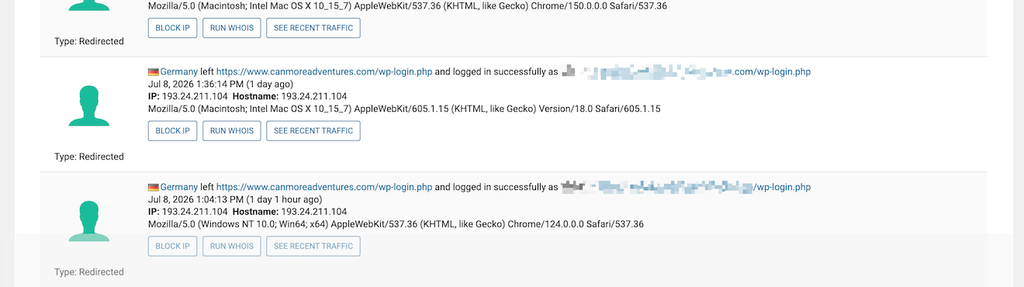
Scanners still have a place. But when there’s evidence of a compromise, a clean scan needs to be considered alongside what visitors see, what the site loads, and what’s actually stored on the server.
Is ClickFix a WordPress vulnerability?
People often search for a “ClickFix vulnerability” when trying to understand what’s happened to their website. ClickFix itself is a social-engineering technique, rather than one specific flaw in WordPress.
There are two separate questions:
- How did someone gain access to the website?
- What did they put there once they had access?
A vulnerable plugin, compromised account, or another security weakness can give an attacker a way in. The ClickFix code then uses the compromised website to target visitors.
In this case, the activity logs gave us another clue: a login from an IP address geolocated to Germany, using an account associated with the client’s previous agency.
That led us to suspect the account’s login credentials had been compromised and used to install the malicious plugins. It didn’t prove how those credentials were obtained, or who was behind the login. An IP address’s location alone can’t establish that.
It also highlighted why old agency accounts deserve attention. Access that was legitimate during a previous project can become a way back into the website if the account remains active and its credentials are compromised.
That distinction matters when fixing a hacked WordPress site. Removing the popup addresses the visible symptom. The investigation also needs to look for remaining malicious components and weaknesses that could allow another compromise.
When Google Ads keeps flagging a site after malware removal
The cleanup wasn’t the end of the disruption. Google Ads continued disapproving the client’s ads for a “compromised site,” even after we had removed the malware.
The client spent weeks trying to resolve it through three calls with their advertising representative and multiple support emails. The ads were still blocked and Google wasn’t changing their tone:
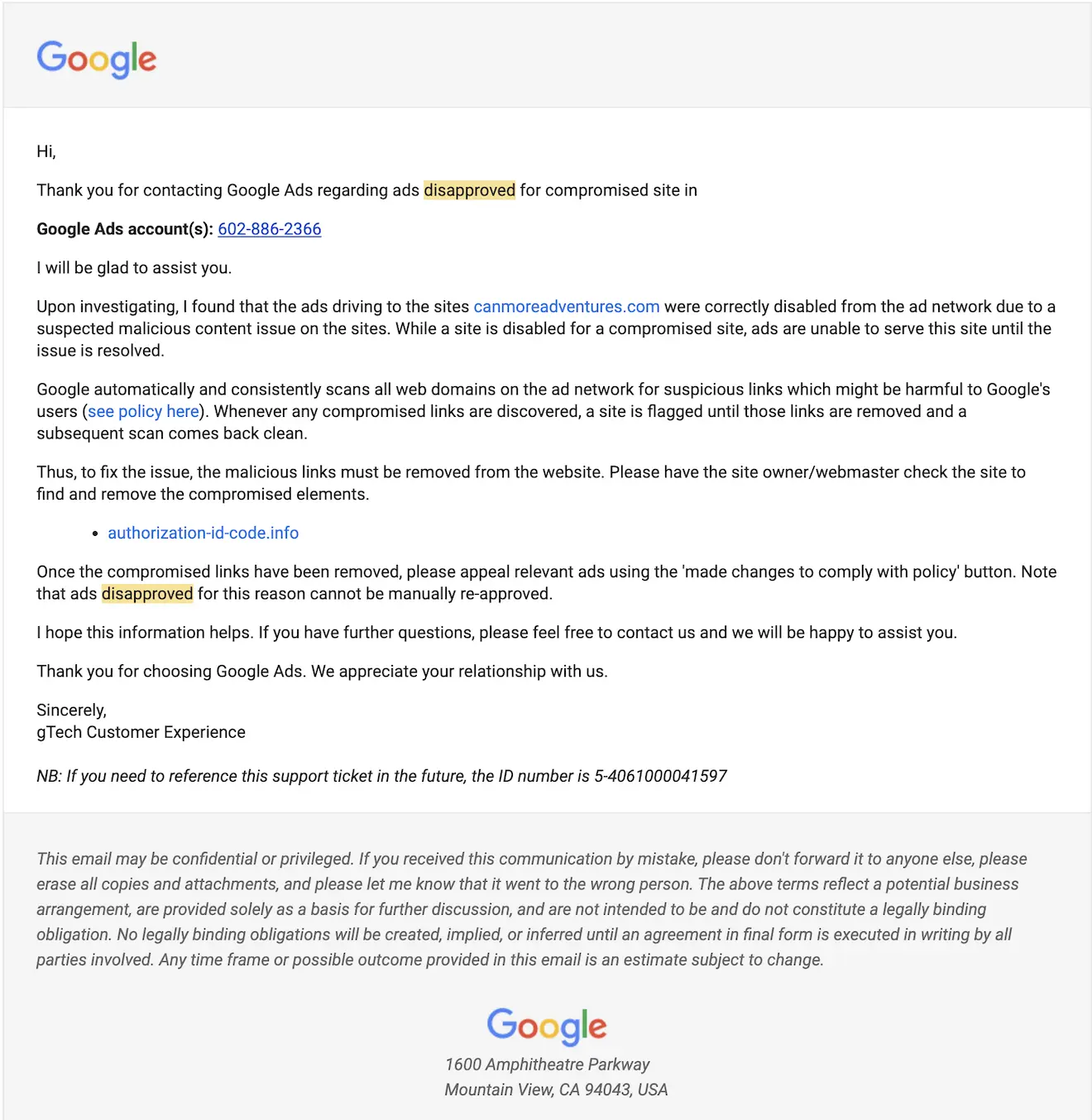
Google’s support response identified authorization-id-code.info as the malicious domain and asked for it to be removed.
We completed another security review but couldn’t find that domain in the website’s files, WordPress database, page source, or known redirects. Malware scans were clean, and Google’s own Safe Browsing check
also reported no unsafe content at the time.
We went back and forth with Google, with their support claiming the affected ads couldn’t be manually reapproved, and directed the client to appeal after making changes.
Google was wrong, and we had the evidence to prove it
We helped the client prepare an escalation asking Google for the exact page URL, file, redirect, or network request associated with its current detection.
All they’d respond with was pointing to authorization-id-code.info. But we could not reproduce the issue or find that string anywhere.
So after sending the evidence of the work we’d done, retesting, and our persistence, Google finally approved the ads:
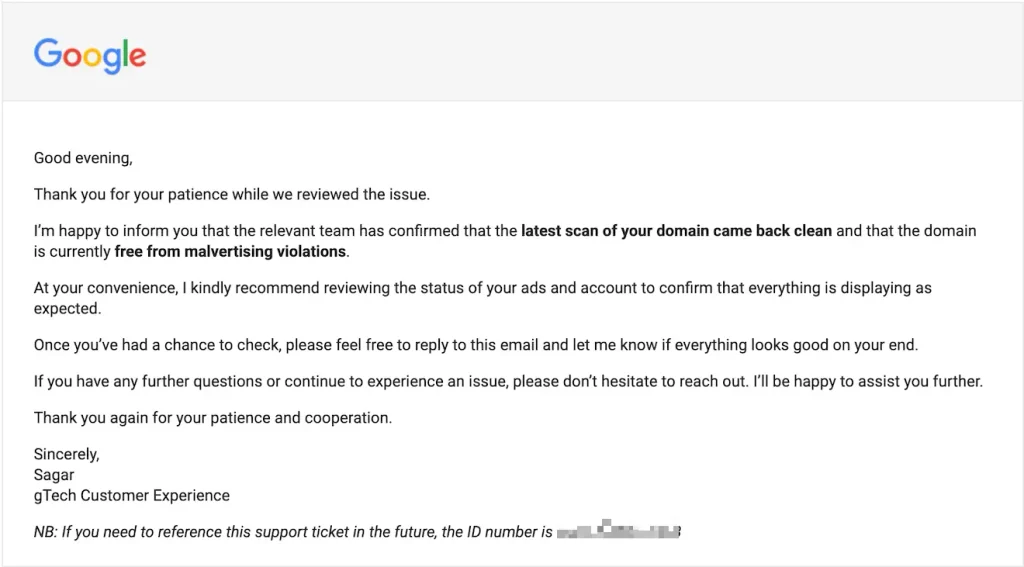
This shows how a WordPress malware infection can keep affecting a site after the attack has been removed. And also that persistence pays off, don’t take what Google says at face value – they’re using automated scanners and maybe scanning a cached, older version of the site.
Despite the client having installed Claude AI into WordPress in an attempt to reduce maintenance costs, you can not rely solely on AI. This is an example of the risks of trying to manage a WordPress site on your own, but we were so happy we were able to solve it for them.
Another lesson here is that cleaning the website of malware and resolving the advertising restriction are separate jobs. Both take evidence, clear communication, and persistent follow-through.
Need help removing ClickFix from WordPress?
If visitors are seeing a fake CAPTCHA, your website asks them to paste commands, or Google Ads has flagged your site as compromised, Big Cedar can help investigate and clean up the WordPress infection.
We’ve dealt with a ClickFix infection that hid from the dashboard and involved malicious code in several locations. We know why a normal-looking website or a clean scan may leave questions unanswered.
Our work can include tracing the malicious code, removing infected components, reviewing WordPress files and access, checking for remaining backdoors, and testing the site after cleanup. We can also help with ongoing maintenance and monitoring.
Contact Big Cedar about your WordPress malware issue. Include your website address, any warning messages, and what visitors have reported so we have a useful starting point.
Sources: